
Your Home Wi-Fi Security Audit

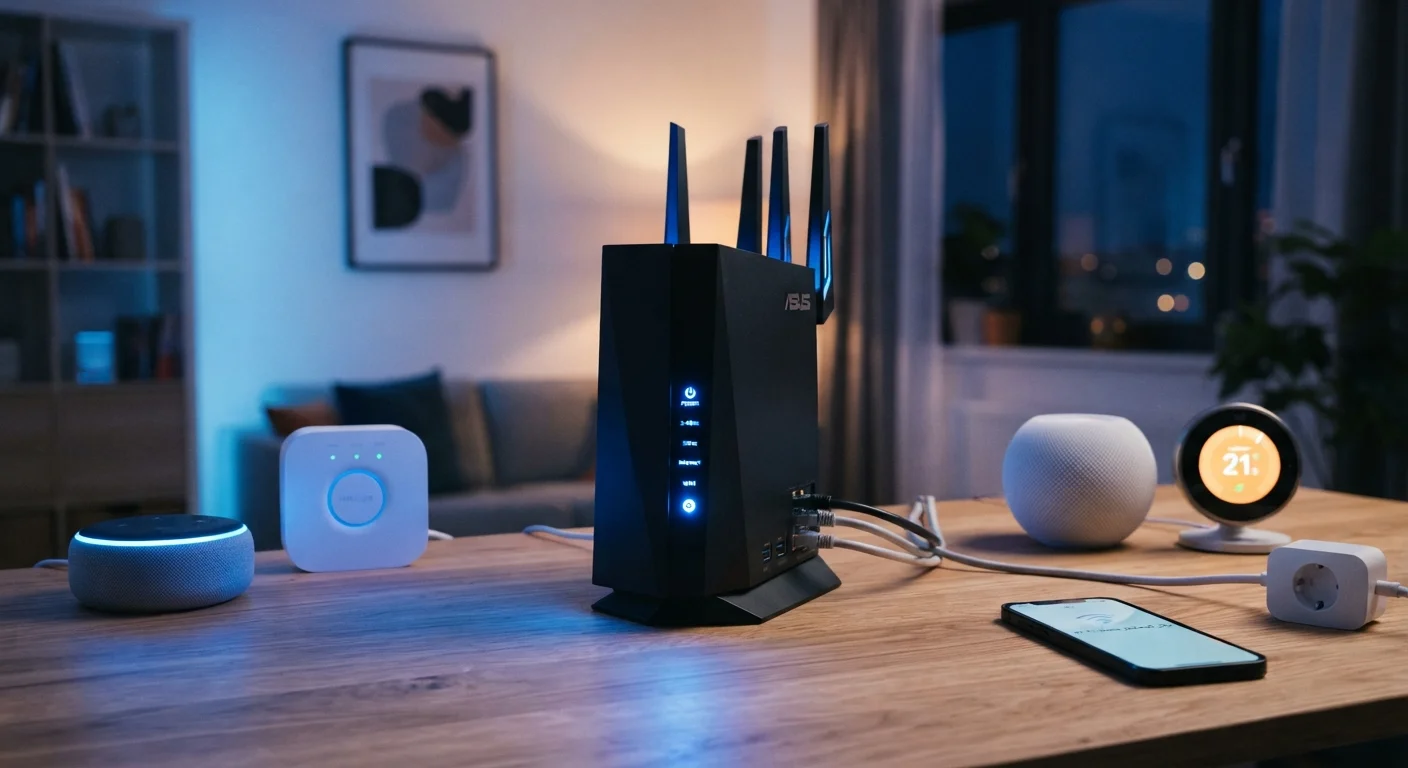
Photo: DockedReads.com | Information Made Easy editorial
Key Takeaways
- Default router credentials are one of the most commonly exploited home network vulnerabilities.
- WPA3 or WPA2 encryption should be enabled on every home Wi-Fi network.
- A separate guest network limits what visitors and smart devices can access on your main network.
- Regular firmware updates patch security flaws that manufacturers discover after your router ships.
- Disabling remote management prevents attackers from reaching your router's admin panel from outside your home.
Why Auditing Your Home Wi-Fi Matters
Most households set up their router once and never revisit its settings. That's understandable — once the internet works, it tends to fade into the background. But a router that hasn't been reviewed in years may be running outdated firmware, using a weak default password, or broadcasting settings that make it easier for outsiders to probe your network.
This checklist walks you through the most impactful security checks, step by step, without requiring any technical background. Each item is something you can verify or change through your router's admin panel — a web page usually reached by typing an address like 192.168.1.1 or 192.168.0.1 into your browser while connected to your home network. Your router's manual or the label on its underside will confirm the exact address, default username, and default password for first-time login.
For a deeper look at how unprotected networks get exploited, see our article on what the risks look like in practice. This audit is also part of a broader privacy framework covered in locking down your digital life.
Router admin panel
The web-based interface where you change nearly all security settings; accessed via a browser on your home network.
Router manual or underside label
Provides the default admin address, username, and password needed to log in for the first time.
Password manager
Helps you create and store strong, unique passwords for your router admin panel and Wi-Fi network without needing to remember them.
Manufacturer's support website
Used to check whether your router model is still receiving firmware updates and to download the latest version if needed.
The Home Wi-Fi Security Checklist
Work through each group below in order. Items marked must are non-negotiable for basic protection. Should items add meaningful protection with modest effort. Nice-to-have items provide additional hardening for those who want to go further.
Router Admin Access
Network Encryption & Password
Firmware & Software
Guest Network & Device Isolation
Connected Devices Review
Advanced Hardening
Default Passwords Are Publicly Known
After the Audit: Keeping Your Network Secure Over Time
A one-time audit is a strong starting point, but network security benefits from occasional re-checks. Set a reminder to revisit this checklist every six to twelve months, or whenever you add a significant new device, change your internet service provider, or replace your router.
If you're setting up a router for the first time or recently replaced your hardware, our new router setup guide covers the full configuration process from unboxing. Connectivity problems after making changes are often unrelated to security settings — why gadgets keep losing their Wi-Fi connection explains the most common culprits. For a broader look at safely managing all the devices in your home, see using gadgets safely at home.
Changing Settings Can Temporarily Drop Your Connection
Keeping your network tidy — removing old devices, reviewing who has your password, and staying current on firmware — costs very little time and significantly reduces your exposure over the long run.
The content on this site is for informational purposes only and is not a substitute for professional advice. Always consult a qualified professional for guidance specific to your situation.