
What the Ports on Your Devices Actually Do

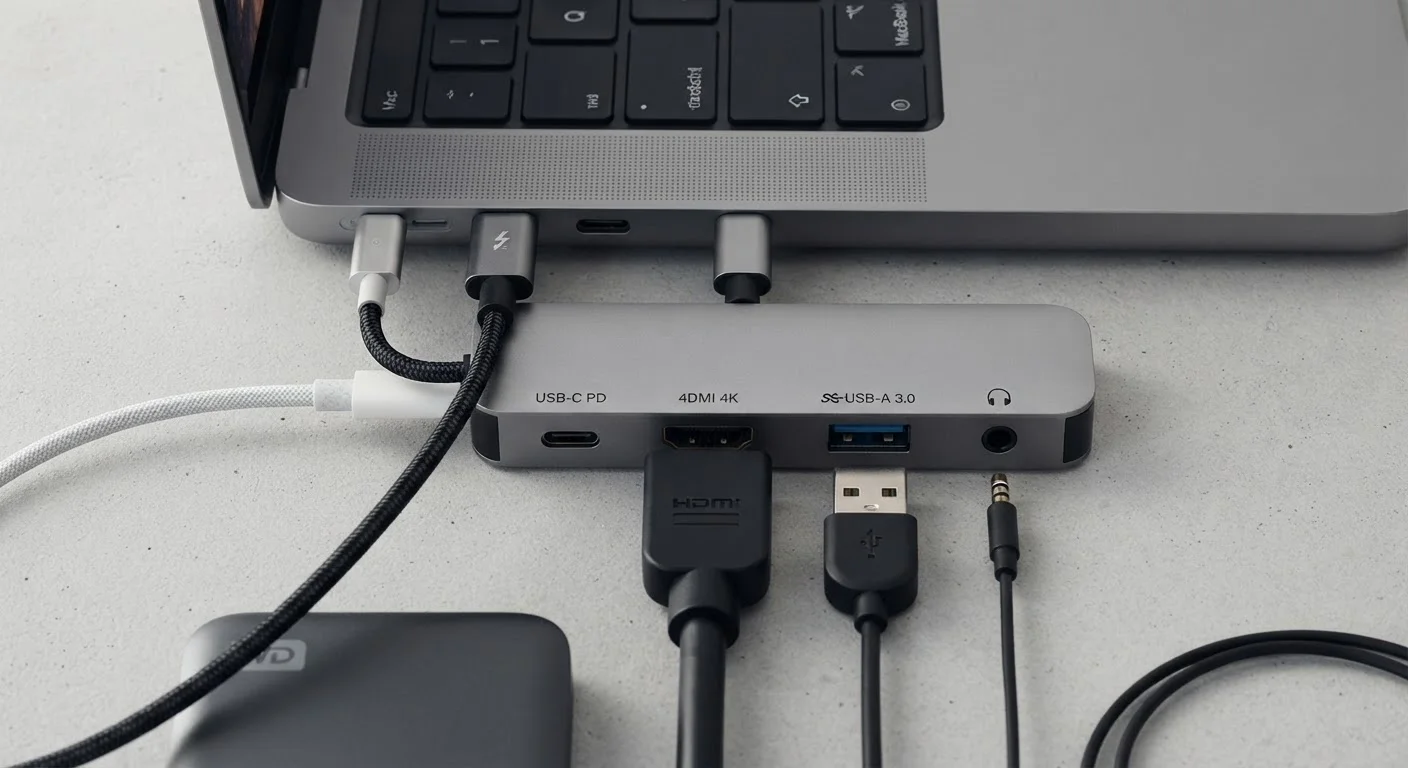
Photo: DockedReads.com | Information Made Easy editorial
Why Ports Still Matter in a Wireless World
Even as wireless connectivity handles more of our daily device interactions, physical ports remain the fastest, most reliable way to transfer data, charge devices, and push video to a display. Yet most people never learn what each port actually does — they just hunt for a plug that fits. This guide names and explains the ports you encounter most often, so you can make confident decisions without guessing.
| Most versatile port type | USB-C (data, power, video, audio over one connector) |
| USB-A maximum data speed (USB 3.2 Gen 2) | 10 Gbps (USB Implementers Forum specification) |
| HDMI audio + video | Yes — single cable carries both |
| Thunderbolt 4 max data transfer | 40 Gbps (Intel Thunderbolt 4 specification) |
| 3.5 mm jack signal type | Analog audio |
| Ethernet port connection type | Wired, physical LAN |
USB Ports: One Name, Many Versions
USB stands for USB, and the standard has evolved significantly since its introduction in the 1990s. The shape of the connector tells you a great deal about what it can do.
USB-A
The flat, rectangular connector that most people picture when they think 'USB.' USB-A ports are found on chargers, computers, and hubs. They carry data and power, but speed depends on the version: USB 2.0 transfers data at up to 480 Mbps, while USB 3.0 and newer can reach 5 Gbps or more. A blue-colored port interior typically signals USB 3.0 capability.
USB-C
The small, oval connector increasingly standard on phones, tablets, laptops, and accessories. USB-C is reversible — there is no wrong way to insert it — and supports a wider range of capabilities than USB-A, depending on what protocol the port is wired for. A USB-C port might carry USB 3.2 data, Thunderbolt 4, DisplayPort video, or USB Power Delivery charging, but not every USB-C port supports every feature. Check your device specifications to know which capabilities a specific port has. See our guide on wired vs. wireless charging for how USB-C Power Delivery affects charge speeds.
Micro-USB and Mini-USB
Older, smaller connectors still found on legacy accessories, certain earbuds, and some budget devices. They carry data and charging but at lower speeds and with less power delivery than modern USB-C. These are gradually being phased out.
USB Power Delivery (USB PD)
A charging standard that allows USB-C ports to transfer higher wattages of power than standard USB. It enables fast charging for phones, tablets, and even laptops when both the charger and device support the standard.
Alternate Mode (Alt Mode)
A USB-C feature that allows the port to carry non-USB signals — such as DisplayPort video or HDMI — through the same physical connector. Not every USB-C port has Alt Mode support; the device specification will confirm it.
Thunderbolt
A high-speed interface developed by Intel that physically uses the USB-C connector but offers up to 40 Gbps data transfer, video output, and power delivery simultaneously. Identified by a lightning bolt icon near the port.
Mbps / Gbps
Megabits per second and gigabits per second — units used to measure data transfer speed. One gigabit equals 1,000 megabits. A port rated at 5 Gbps can theoretically move a 1 GB file in about 1.6 seconds under ideal conditions.
Adapter / Dongle
A small hardware converter that translates one port type to another — for example, USB-C to HDMI, or USB-A to Ethernet. Adapters do not upgrade the underlying capabilities of a port; they only change the physical connector shape.
HDMI (High-Definition Multimedia Interface)
A digital interface standard that carries both high-definition video and audio over a single cable. Found on TVs, monitors, projectors, laptops, and media players. Higher HDMI version numbers generally support higher resolutions and refresh rates.
Display Ports: Getting Video to a Screen
Display ports transmit video — and often audio — from a source device to a monitor, TV, or projector.
HDMI
HDMI is the most common display connector in homes. A single cable carries both high-definition video and multi-channel audio. Standard HDMI (Type A) is the large rectangular port on TVs and monitors. Mini-HDMI (Type C) and Micro-HDMI (Type D) are smaller versions used on cameras and tablets. HDMI 2.0 and 2.1 are common current versions; higher numbers generally support higher resolutions and refresh rates.
DisplayPort
More common on computer monitors and graphics cards than on consumer electronics. DisplayPort handles high refresh rates and resolutions well, making it popular for computer setups. A Mini DisplayPort connector — also called a Thunderbolt 1 or 2 port on older Apple hardware — looks similar but is distinct.
USB-C with DisplayPort Alt Mode
Many modern laptops output video through USB-C using DisplayPort Alternate Mode. This lets a single USB-C cable connect to an external monitor via an adapter or dock — useful when a device lacks a dedicated HDMI port. Not all USB-C ports support this; look for a small display icon beside the port or check the device manual. Understanding this distinction matters for smart device setups where a laptop replaces a traditional desktop.
40 Gbps
Thunderbolt 4 peak data transfer speed
Per Intel's Thunderbolt 4 specification — fast enough to move a full 4K video file in seconds.
1 cable
USB-C connections needed to power, display, and sync a laptop via dock
A single Thunderbolt or USB-C cable with the right dock can replace four or more separate connections on a desktop setup.
Audio, Storage, and Specialty Ports
Beyond USB and display connections, several other ports appear regularly on everyday devices.
3.5 mm Audio Jack
The round port used for headphones and external speakers. It carries analog audio — meaning the device converts digital sound to an electrical signal before it reaches the port. Despite being absent from many modern smartphones, the 3.5 mm jack remains on laptops, desktop computers, and audio equipment. A port with a single ring accepts mono audio; one with two black rings (TRS) is stereo; one with three black rings (TRRS) also carries a microphone signal, as on phone headsets.
SD Card Slot
A flat slot, typically found on laptops, cameras, and some tablets, that accepts SD (Secure Digital) memory cards. Used primarily to transfer photos and videos from cameras to computers. MicroSD slots accept the smaller card format common in phones and action cameras; an adapter lets a microSD card fit a standard SD slot.
Ethernet (RJ-45)
The wide, rectangular port for a wired internet connection. Ethernet delivers a more stable, lower-latency connection than Wi-Fi — important for video calls, gaming, or streaming. Many thin laptops omit this port; a USB-to-Ethernet adapter restores wired connectivity. If reliable connections matter to your household setup, consider this alongside the safe gadget practices that protect your equipment long-term.
Thunderbolt
Developed by Intel, Thunderbolt ports physically resemble USB-C and are often labeled with a lightning bolt icon. Thunderbolt 3 and 4 offer data transfer speeds up to 40 Gbps and can carry power, video, and data simultaneously. A single Thunderbolt cable can connect a laptop to a dock that expands to multiple monitors, USB ports, and Ethernet — a key feature for productivity setups. Not all USB-C ports are Thunderbolt; the reverse is also true — Thunderbolt ports can accept standard USB-C cables, but only at USB speeds.
Same Port Shape, Different Capabilities
The content on this site is for informational purposes only and is not a substitute for professional advice. Always consult a qualified professional for guidance specific to your situation.