
Two-Factor Authentication From the Ground Up

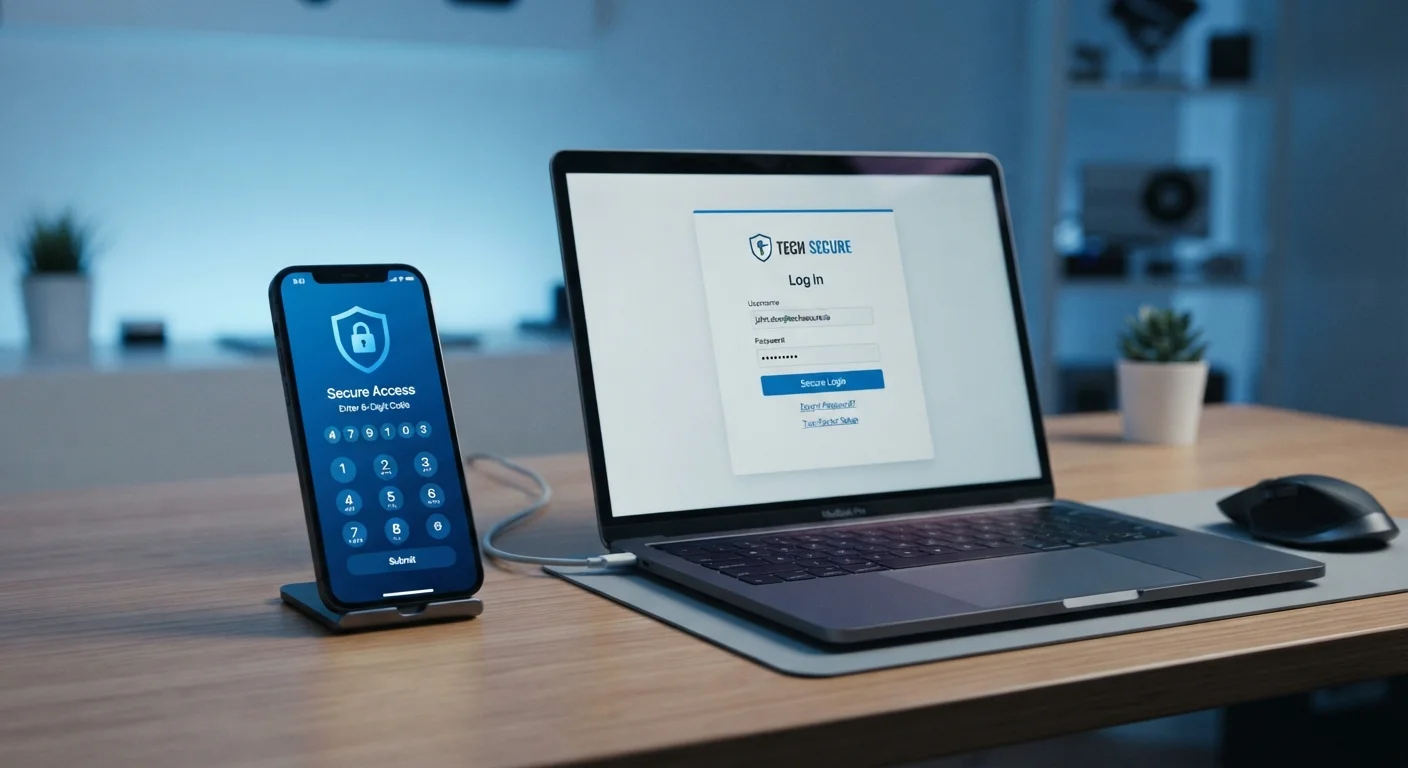
Photo: DockedReads.com | Information Made Easy editorial
Key Takeaways
- Two-factor authentication requires both your password and a second proof of identity to log in.
- Authenticator apps offer stronger protection than SMS text codes.
- Most major services — email, banking, social media — support 2FA in their security settings.
- Setting up 2FA takes only a few minutes and significantly reduces the risk of unauthorized account access.
- Backup codes should be saved somewhere safe when you enable 2FA.
What Is Two-Factor Authentication?
A password proves you know something — your secret phrase. Two-factor authentication (2FA) adds a second requirement: something you have or something you are. Even if someone steals your password, they still can't get in without that second factor.
Think of it like a bank vault with two locks. One key is your password. The second key is a temporary code sent to your phone, generated by an app, or confirmed with your fingerprint. Both must be present at the same time.
As strong passwords alone are no longer enough, 2FA has become one of the most recommended steps you can take to protect your accounts — and it's far simpler to set up than most people expect.
Two-factor authentication (2FA)
A login method that requires two separate proofs of identity — typically your password plus a code from your phone or app — before granting access.
Authenticator app
A smartphone application that generates short, time-sensitive login codes stored locally on your device, not sent over a phone network.
SIM swapping
A fraud technique where an attacker convinces a phone carrier to transfer your number to a SIM they control, letting them receive your SMS verification codes.
Hardware security key
A physical device, usually USB-sized, that you plug in or tap to confirm your identity during login — the most phishing-resistant 2FA method available.
Backup codes
One-time-use codes provided when you set up 2FA, used to regain access to your account if you lose your phone or second-factor device.
The Three Types of 2FA You'll Encounter
Not all second factors are equal. Here's what you'll commonly run into:
- SMS codes: A six-digit number is texted to your phone after you enter your password. Easy to use, widely supported, but vulnerable to SIM-swapping attacks where a criminal convinces your carrier to redirect your number.
- Authenticator apps: Apps like those offered by major tech companies generate time-sensitive codes locally on your device, without relying on your phone carrier. These codes refresh every 30 seconds and are not transmitted over the air, making them considerably more secure than SMS.
- Hardware security keys: A small physical device — often USB-sized — that you plug in or tap to confirm your identity. This is the strongest option available and is immune to phishing because the key verifies the website's address before responding.
For most everyday users, switching from SMS to an authenticator app is the single biggest security upgrade you can make. If you're already using a password manager, many now include a built-in authenticator function.
Start With an Authenticator App
How to Set Up 2FA on Your Accounts
The setup process is nearly identical across services. Here's what it looks like in practice:
- Go to security settings. Log into the account you want to protect. Look for a section labeled Security, Privacy, or Account Settings. Most major platforms have a dedicated 2FA or two-step verification option.
- Choose your method. Select SMS, authenticator app, or hardware key. If you're using an authenticator app, you'll be shown a QR code to scan with the app.
- Confirm the setup. The service will ask you to enter a code generated by your chosen method to prove it's working before activating 2FA.
- Save your backup codes. Almost every service will provide a set of single-use recovery codes. Print them or store them in a secure location — these are your lifeline if you ever lose access to your second factor.
Your email account should be the first place you enable 2FA, since it controls password resets for almost everything else. From there, work through financial accounts, social media, and any service storing payment details. For a broader look at hardening your digital life, see our comprehensive privacy playbook.
Don't Skip the Backup Codes Step
Common Questions and Pitfalls
2FA is straightforward once it's running, but a few misunderstandings trip people up at the start.
"I'll get locked out of my own account." This is the most common worry. The solution is simple: save your backup codes when prompted. Keep them somewhere you'd remember — a printed sheet in a safe place works fine.
"It's too much hassle every time I log in." Most services let you trust a device for 30 days or longer. After an initial period, you'll rarely be prompted unless you log in somewhere new.
"My account isn't important enough." Compromised email accounts are frequently used to reset passwords on financial or shopping accounts tied to them. The value of any single account is rarely just the account itself. As part of a complete home network security mindset, reviewing your router's security settings is also worthwhile — see our guide on setting up a secure home router for more context.
Two-factor authentication isn't a perfect shield, but it closes the door that a stolen password leaves wide open. An afternoon spent enabling it across your key accounts is time genuinely well spent.
Your Email Provider's Security Settings
Search your email provider's help center for '2-step verification' to find its official setup guide. Email is the highest-priority account to protect first.
Two Factor Auth List (twofactorauth.org)
A community-maintained directory showing which websites and apps support 2FA and what methods they offer — useful for checking accounts you may have overlooked.
Frequently Asked Questions
The content on this site is for informational purposes only and is not a substitute for professional advice. Always consult a qualified professional for guidance specific to your situation.