
Everyday Gadgets

Before You Factory Reset a Device: A Pre-Reset Checklist

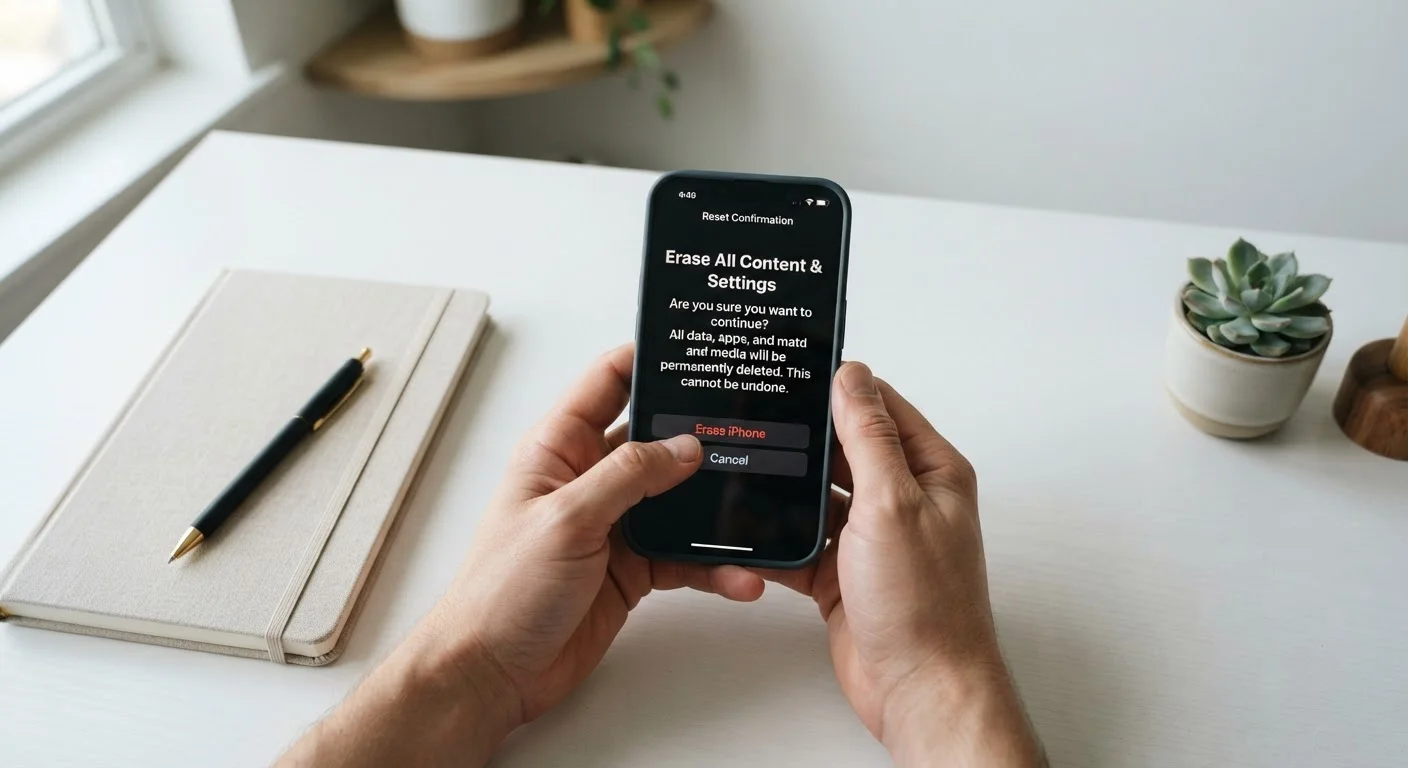
Before You Factory Reset a Device: A Pre-Reset Checklist

Photo: DockedReads.com | Information Made Easy editorial

A step-by-step checklist covering backups, account sign-outs, and data checks to complete before wiping any personal device.

Key Takeaways

  • A factory reset permanently erases all local data — backups must be completed before you proceed.
  • Sign out of all accounts (Apple ID, Google, email) before resetting to avoid activation locks.
  • Check that cloud syncing has finished — photos and documents may not upload instantly.
  • Remove or decrypt SD cards and SIM cards before wiping a phone or tablet.
  • Record any app licenses or subscription credentials that won't transfer automatically.

Why Preparation Matters Before Any Reset

A factory reset returns a device to the state it was in when it left the manufacturer — every photo, contact, downloaded app, saved password, and personal setting is erased. Unlike deleting a file, this action is not easily reversed. That makes the minutes you spend preparing beforehand some of the most important you'll invest in your device's lifecycle.

People reset devices for many reasons: selling or donating an old phone, troubleshooting a serious software problem, or handing a tablet to a child with a clean slate. The reason shapes which steps are most urgent, but the core checklist applies across all scenarios. Whether you're wiping a smartphone, a laptop, a smart speaker, or a tablet, the same categories of risk appear: lost data, locked accounts, and missing credentials.

For context, this kind of methodical pre-action check is a habit worth building in several areas of life — much like the pre-drive vehicle safety check that catches problems before they become roadside emergencies. The same logic applies here: a short checklist now prevents a much larger problem later.

If your reset is part of a phone upgrade, you'll also want to plan your migration path. Our guide on setting up a new smartphone without losing your old data walks through the next phase once this checklist is complete.

Skipping Account Sign-Out Can Lock the Device

On iPhones and iPads, failing to sign out of Apple ID before resetting activates Activation Lock. The next user — including you on a re-setup — will be required to enter the original Apple ID credentials. If you no longer have access to that account, the device may become permanently inaccessible. Always sign out and disable Find My before wiping an Apple device.

The Pre-Reset Checklist

Work through the groups below in order. Each category addresses a distinct risk area. Check off items as you go — don't rely on memory for a process you may not repeat for months or years.

Back Up Your Data

Back up photos and videos to a cloud service or external drive, and confirm the upload has fully completed before proceeding. Must
Export or sync contacts to your Google account, iCloud, or a vCard file so they can be restored on the next device. Must
Back up text messages using your platform's built-in backup tool or a reputable third-party export app if messages are important to you. Should
Download or export any documents, notes, or files stored only locally on the device — anything not already in cloud storage. Must
Back up app data for games or apps that store progress locally rather than in the cloud. Nice to have

Sign Out of Accounts

Sign out of your Apple ID or Google account through the device's settings — this deactivates the activation lock that can make a wiped device unusable. Must
Sign out of your email accounts, social media apps, and any banking or financial apps currently logged in on the device. Must
Deauthorize the device in any media or software platforms (such as digital book readers or music libraries) that limit the number of authorized devices. Should
Disable Find My Device or Find My iPhone before resetting — on Apple devices this must be done before the reset or you will be prompted for credentials afterward. Must

Collect Credentials and Licenses

Write down or save to a password manager any app license keys or one-time activation codes that are not tied to an account login. Should
Note which paid apps or subscriptions are linked to your account (and will restore automatically) versus those requiring a separate key. Should
Record Wi-Fi passwords you haven't memorized — they will not transfer automatically unless your new device restores from a full backup. Nice to have

Handle Physical Components

Remove the SIM card from a phone or tablet before resetting — a factory reset does not erase the SIM, but removing it prevents it from staying in a device you're selling. Must
Remove or back up any SD or microSD card inserted in the device, since some reset processes can format external storage as well. Must

Final Checks Before You Reset

Verify your backup by opening the backup destination and confirming recent files, photos, and contact counts match what you expect. Must
Ensure the device is plugged into power before beginning the reset — a reset that loses power mid-process can leave the device in an unusable state. Must
Check that you have access to the email address and password of the primary account used on this device, so you can set up your next device without being locked out. Must
If donating or selling the device, note the serial number beforehand in case you need it for warranty or transfer paperwork. Nice to have

Cloud Sync Is Not Instant

When you trigger a cloud backup, files don't upload immediately — especially large photo libraries on a slow connection. Wait until your backup application confirms the sync is complete before starting the reset. Opening your cloud storage on a separate device and verifying that recent photos or files appear there is the safest confirmation method.

Once you've confirmed every item, you're in a much stronger position to proceed. If you're also planning to remove apps before or after the reset, review our app deletion data checklist to make sure account data tied to individual apps is handled correctly.

For broader guidance on keeping all your household devices running safely, see using gadgets safely at home.

Tech & Devices Editorial Team

DockedReads.com | Information Made Easy

Tech & Devices Editorial Team is the collective byline for our editorial team and contributor network. Articles published under this byline or an editorial pen name are researched, written, and reviewed according to our editorial standards for clarity, consistency, and independence before publication.

Everyday GadgetsApps & SoftwareInternet & Privacy
View author profile

The content on this site is for informational purposes only and is not a substitute for professional advice. Always consult a qualified professional for guidance specific to your situation.