
Setting Up a New Smartphone Without Losing Your Old Data

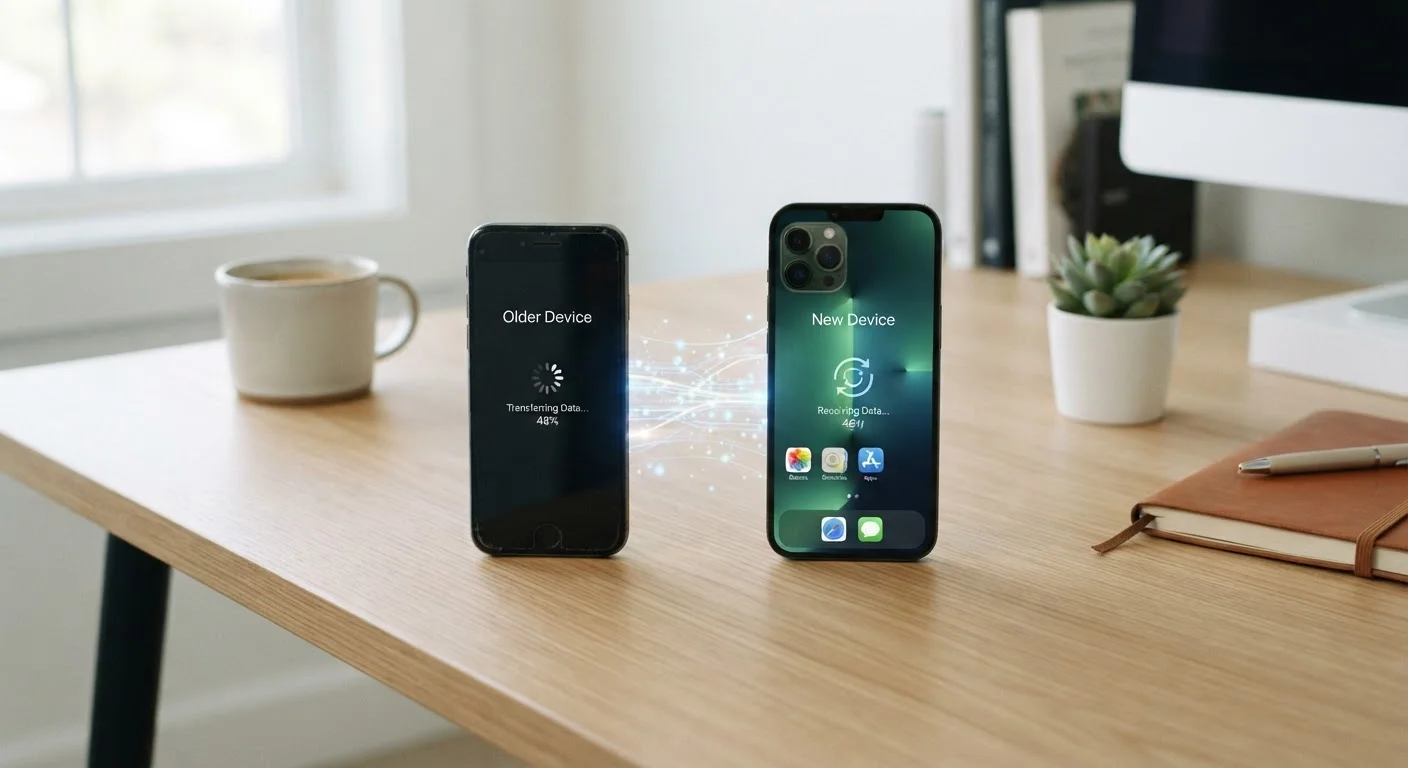
Photo: DockedReads.com | Information Made Easy editorial
Key Takeaways
- Back up your old phone completely before starting the transfer process.
- Both Android and iOS offer built-in migration tools that handle contacts, photos, and settings.
- Cloud accounts and two-factor authentication apps require extra attention during migration.
- Some app data — particularly game progress or chat history — may need manual export steps.
- Verify all data has arrived on the new phone before wiping or trading in the old one.
Why a Little Preparation Saves a Lot of Grief
Switching to a new smartphone is exciting — until you realize your contacts are missing, your photos stopped at last month, or a key app won't remember your login. Most data loss during phone transitions is preventable, and the fix almost always comes down to one thing: a full backup before you start.
Both Android and iOS have mature migration systems that move the majority of your data automatically. But a handful of categories — two-factor authentication (2FA) apps, downloaded media, and certain game saves — sit outside those automatic flows and need deliberate handling. This guide walks you through both platforms so you can migrate with confidence regardless of which ecosystem you're using.
What you will need
What You'll Need Before You Begin
Gather the following before touching either phone. Skipping this stage is the leading cause of partial transfers.
Google One or iCloud storage
Stores your full phone backup in the cloud so data can be restored to the new device.
USB cable or wireless transfer app
Enables direct device-to-device transfer for Android (e.g., using the built-in Setup Wizard cable flow).
Authenticator app backup codes
Required to re-enable two-factor authentication on the new phone without being locked out of accounts.
Once everything above is in place, charge both phones to at least 80% and connect them to Wi-Fi. Large backups and device-to-device transfers consume significant data and battery.
Step-by-Step: Backing Up and Transferring Your Data
Follow the steps below in order. The sequence matters — attempting a transfer before a backup is complete risks an incomplete migration.
Back up your old phone to the cloud
On Android: Go to Settings → System → Backup and tap Back up now. This saves contacts, app data, call history, and settings to your Google account.
On iPhone: Go to Settings → [Your Name] → iCloud → iCloud Backup and tap Back Up Now. Wait until the backup timestamp updates to confirm it completed.
Transfer your authenticator app
Open your 2FA app and use its built-in account transfer or export feature to move codes to the new phone before the old phone is wiped. Each app has its own process — consult the app's help section for exact steps.
Start the new phone's setup wizard
Power on the new phone and follow the on-screen setup wizard. Both Android and iOS will prompt you to restore from a backup or transfer from a nearby device.
- Android: Select Copy apps and data and choose whether to use a cable, wireless transfer, or restore from a Google backup.
- iPhone: Choose Restore from iCloud Backup or use Quick Start — a feature that lets you hold the old iPhone near the new one to transfer settings wirelessly over Bluetooth.
Re-download apps and log back in
After the restore completes, apps will begin downloading automatically in the background. Log in to any app that prompts for credentials. Payment apps (banking, tap-to-pay) typically require re-verification by design for security reasons.
Verify your data before touching the old phone
Check contacts, the camera roll or Photos library, and any apps that hold important data. Confirm messages, notes, and app settings look correct. Only proceed to wipe or trade in the old device once you are satisfied everything transferred successfully.
Stay on Wi-Fi Throughout the Process
After the transfer finishes, spend a few minutes checking the new device before doing anything with the old one. Open your contacts, photos, and two or three key apps to confirm data arrived correctly. Only when you are satisfied should you consider a factory reset or trade-in of the old phone. For guidance on safely removing apps from your old device afterward, see our checklist for protecting your data before deleting an app.
What the Automatic Transfer Won't Cover
Built-in migration tools are comprehensive but not universal. A few categories consistently fall through the gaps:
- Authenticator apps: Apps like Google Authenticator or Microsoft Authenticator store 2FA codes locally. Transfer these before wiping the old phone — most have a built-in export or account-transfer flow. Losing access to 2FA codes can lock you out of important accounts.
- Downloaded media: Music, podcasts, or e-books downloaded for offline use are often tied to an account license, not stored in your general photo library. Re-download them from the app after logging in on the new device.
- WhatsApp and similar chat apps: Chat history requires a dedicated in-app backup step. On Android, WhatsApp can back up to Google Drive; on iOS, it backs up to iCloud. Trigger this manually before starting the transfer.
- Local files not synced to cloud: Documents saved only to the phone's internal storage won't travel automatically. Move them to a cloud folder or email them to yourself first.
Once your new phone is fully set up, it makes a natural moment to explore other connected tools — for example, getting started with video calling apps works best when your contacts and accounts are already in place on the new device.
Don't Wipe the Old Phone Too Soon
The content on this site is for informational purposes only and is not a substitute for professional advice. Always consult a qualified professional for guidance specific to your situation.