
Syncing vs. Backing Up: Two Habits Your Files Depend On

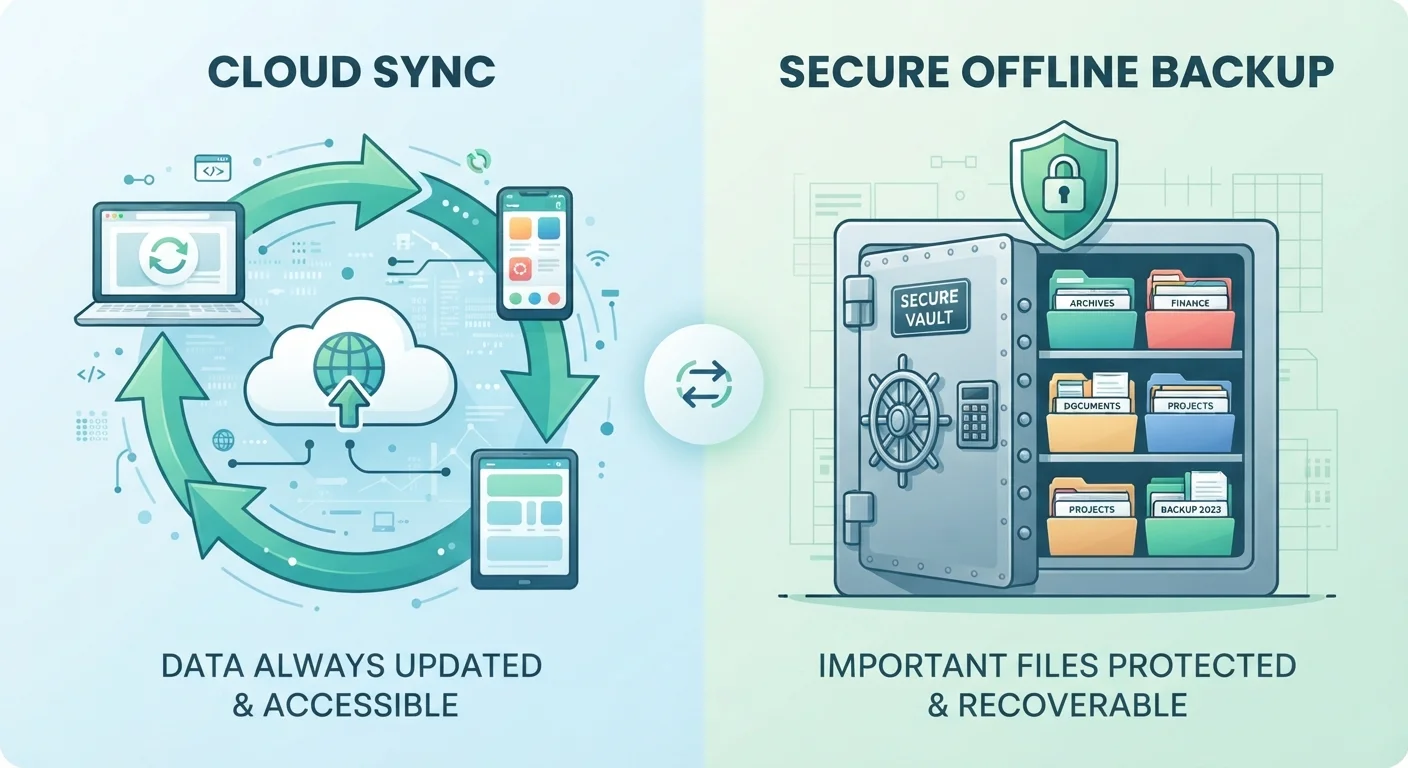
Photo: DockedReads.com | Information Made Easy editorial
Key Takeaways
- Syncing keeps files identical across devices in real time — it is not the same as saving a protected copy.
- Backups store a separate, recoverable copy of your data, often with version history.
- Deleting a synced file typically removes it from all connected devices simultaneously.
- A ransomware attack or accidental deletion can propagate instantly through a sync service.
- Most data-protection experts recommend both syncing and an independent backup strategy.
What Syncing Actually Does
File syncing keeps a consistent, up-to-date copy of your files across all the devices connected to a single account. When you edit a document on your laptop, the sync service detects the change and pushes the updated version to your phone, tablet, and any other linked device — usually within seconds. The result feels like working from one universal folder regardless of which device you pick up.
The key technical reality: syncing mirrors changes, including deletions. If you remove a file on one device, the sync service removes it everywhere. If a piece of malware encrypts your files, that encrypted (and now corrupted) version can propagate to every synced device almost immediately. Syncing is designed for consistency, not for preservation.
Common sync services follow this same fundamental model. Understanding this helps you avoid a false sense of security when your files appear "in the cloud." Being stored remotely is not the same as being safely backed up.
| Criterion | File Syncing | File Backup |
|---|---|---|
| Primary purpose | Consistency across devices | Recovery from loss or damage |
| Update frequency | Real-time or near-instant | Scheduled intervals (hourly, daily) |
| Version history | Limited or none | Multiple past versions retained |
| Deletion behavior | Deletes across all devices | Preserved in backup copy |
| Ransomware vulnerability | High — damage propagates instantly | Lower — restore from prior snapshot |
| Typical storage location | Same cloud account as primary device | Separate drive, service, or account |
| Ease of access | Immediate, live access | Requires restore process |
What Backing Up Actually Does
A backup is a separate, independent copy of your data stored in a location distinct from your primary files. Crucially, backups are typically not synchronized in real time — they are snapshots taken at scheduled intervals. Many backup systems keep multiple versions, so you can reach back in time and restore a file as it existed last Tuesday, last month, or last year.
This version history is what makes backups genuinely protective. If you accidentally overwrite an important document or ransomware scrambles your data, a good backup lets you restore a clean copy from before the problem occurred. A sync service, by contrast, will have already overwritten or propagated the damage.
Backup destinations matter too. A backup stored only on the same computer it protects offers limited value if that machine is stolen or fails. The widely cited "3-2-1" principle — three copies, on two different media types, with one stored off-site or in a separate cloud account — represents a durable general framework many IT professionals reference. When you're migrating to a new phone, for instance, having a proper backup rather than just a sync makes the transfer far more reliable.
3-2-1
Widely cited backup rule of thumb
The 3-2-1 principle — three copies, two media types, one off-site — is a broadly referenced framework among IT and data recovery professionals.
60%+
SMBs that never recover after major data loss
Various industry analyses suggest a majority of small businesses that suffer significant data loss without a recovery plan do not fully resume operations, underscoring the importance of backups.
Where They Overlap — and Where They Don't
The confusion between syncing and backing up is understandable. Both involve copying files to an off-device location, both use cloud infrastructure, and some services blend elements of both in their marketing language. But their core purposes diverge sharply at the point of failure.
Syncing excels at convenience: seamless access, collaboration, and always-current files across devices. It fails as a recovery tool because it is not designed to hold an independent, uncorrupted historical record. Backing up excels at recovery and protection but typically does not give you live, multi-device access to your latest edits.
The practical implication: use a sync service for everyday workflow and accessibility, and maintain a separate backup strategy for genuine data safety. This isn't redundancy — it's two different jobs being done by the right tools. Think of it like the difference between a car's GPS (always updated, navigation-focused) and its spare tyre (rarely needed, but irreplaceable in a crisis).
Good digital habits build on each other. Keeping files organized makes both syncing and backing up more effective — see our guide on keeping your software organised for strategies that reduce clutter before it becomes a recovery headache.
Some Services Blend Both Features
The content on this site is for informational purposes only and is not a substitute for professional advice. Always consult a qualified professional for guidance specific to your situation.